
Use animation to control the explanation sequence, reveal supporting information, and show meaningful changes. Design each slide as a clear state and avoid adding movement that distracts from the speaker or narration.
An animated presentation can be a live talk, a self-running video, or a narrated resource. Those formats need different timing. Decide how the audience will experience it before building transitions. A live presenter can respond to the room; a recorded presentation must provide its own context and pacing.
Step by step
Choose the delivery mode
Specify live, narrated, or self-running playback. Identify the audience and the decision or understanding you want. For a recorded presentation, include enough narration or captions to stand alone. For a live talk, avoid packing every spoken detail onto the slide.
Design the static slide states
Create readable compositions for the important moments. A process slide may have an initial problem state and a completed solution state. Check hierarchy and spacing before animation. Movement should connect clear states rather than attempt to rescue a cluttered slide.
Plan builds around the argument
Reveal a point when it becomes relevant. Use animation to show a relationship, a comparison, or a change over time. Keep supporting context visible where it helps. Avoid excessive entrances that make the audience wait for information they already understand.
Rehearse or record against the timing
For live delivery, test the click sequence and transitions. For narration, time the words with the builds and allow pauses for charts or diagrams. If the presenter repeatedly waits for an effect, shorten it. If information arrives before it is explained, revise the sequence.
Check the exported or shared experience
Test the actual delivery format, including fonts, audio, transitions, and any embedded media. A presentation file, browser view, and video export may behave differently. Keep a usable fallback such as a static version where appropriate, and verify the final artifact before the event or publication.
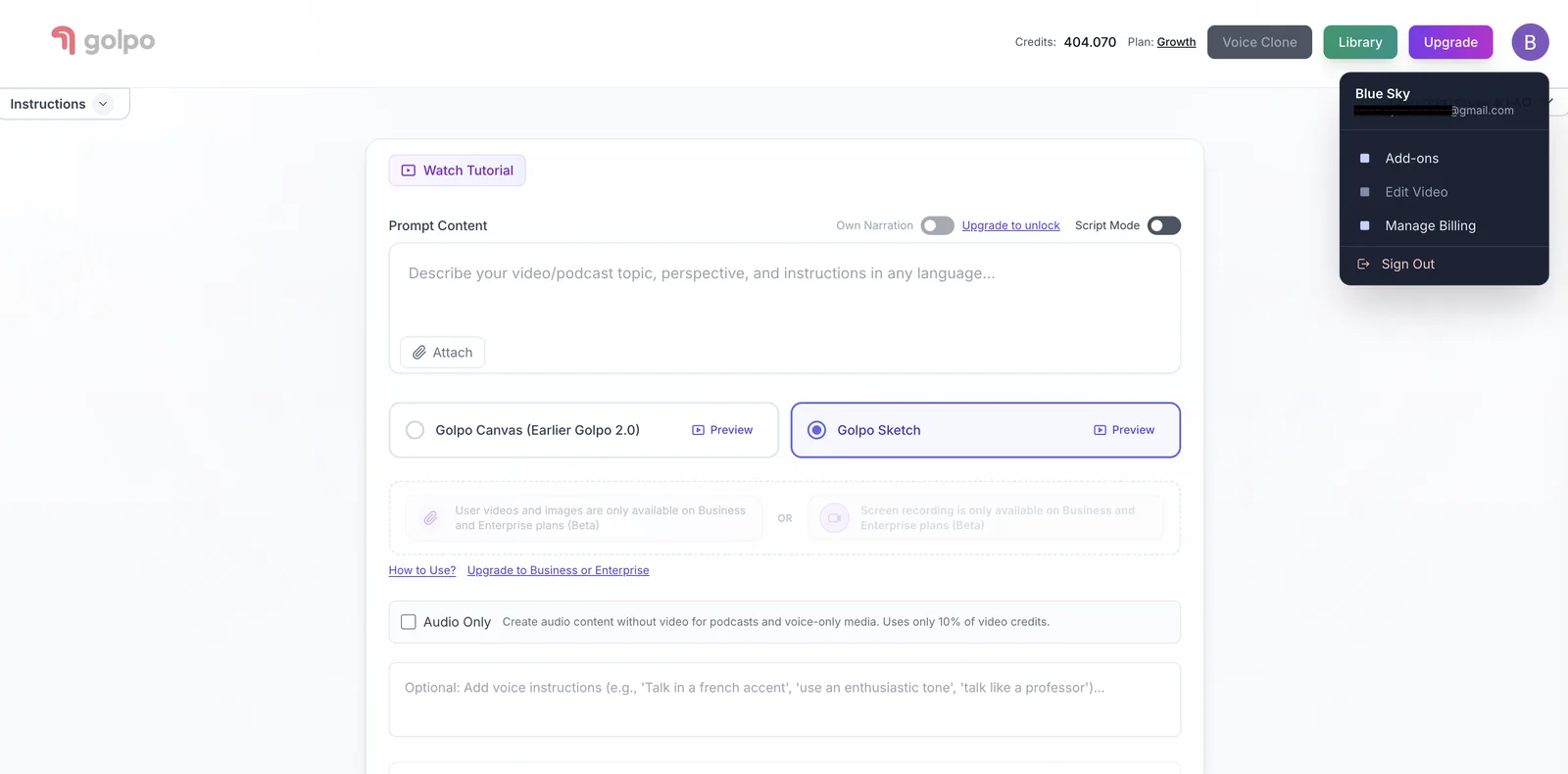
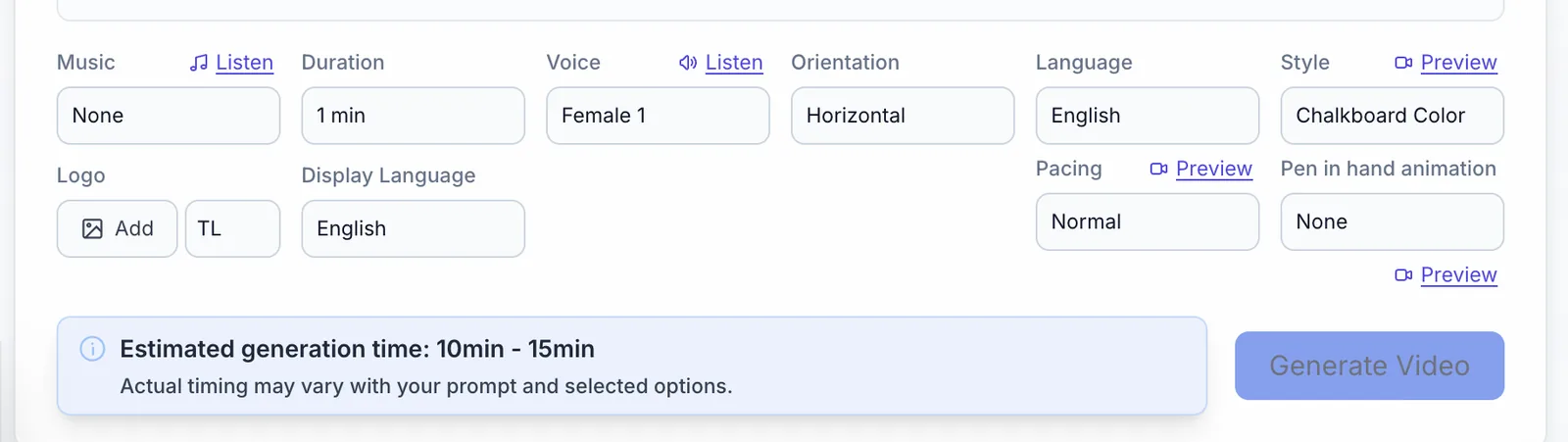
The workflow inside Golpo
Use these real interface views to find the creation and review controls. Apply the decisions from this guide to your own brief, then review the resulting script and visuals before publishing.
Animate the reasoning, not the bullet count
A slide does not need one entrance effect per bullet. Consider whether the audience needs the whole framework visible or should discover it step by step. A well-timed highlight can be more useful than making each line fly in from a different direction.
Use diagrams to replace dense explanation
If several bullets describe a process, turn them into a diagram and animate the flow. Keep labels short and let narration provide context. This can make the presentation easier to follow while preserving the underlying detail in supporting notes.
Worked example: explain a new onboarding process
The presentation first shows the current handoff problem, then reveals a revised sequence with named owners. The animation highlights each transition as the narration explains it, and the final slide holds the complete process.
Turn a five-slide onboarding-process presentation into a narrated animated sequence. Define clear static states, meaningful builds, narration timing, and a final process overview. Avoid decorative entrances for every bullet. Include checks for fonts, audio, exported playback, and whether the presentation remains understandable without a live speaker.
Before you publish
- Delivery mode chosen
- Static states clear
- Builds support argument
- Timing rehearsed
- Actual format tested
Now, make it yours.
Start with a prompt, bring your script, or turn document text into a video.
You’ll review the setup in Golpo.
Sign-in and plan limits apply.
Your complete text is ready. It is too long to send reliably in a link. Copy it, open Golpo, and paste it into the prompt or script field.
Open GolpoCommon questions
Should every slide animate?
No. Use movement when it improves sequence or understanding. A clear static slide can provide a useful pause.
Can I turn a slide deck into a video?
Yes, with a workflow that supports the needed narration and export. Review pacing and context because a deck designed for a live speaker may not stand alone.
Sources & useful reading
Published November 24, 2026. Product features and platform policies can change; linked official documentation is the source for current availability. Examples are illustrative production briefs.