
Make one clear point with a vertical visual sequence, readable captions, and an opening frame that establishes the subject immediately. Use the final export to test pacing and legibility on a phone.
A useful Reel does not need a person speaking into a camera. It needs a visible reason to keep watching. That reason might be a process becoming clearer, a question being answered, or a surprising comparison being resolved. Plan the visual argument before adding background footage or decorative transitions.
Step by step
Choose a single transformation
Write the before-and-after state. For a planning tip, the before might be an overloaded task list and the after three ordered actions. This gives the video a visible direction. Avoid compressing a complete course into one Reel; choose a small result the viewer can actually understand.
Build the opening frame and line together
Show the problem while the narration names it. A cluttered checklist can support “Your list is full, but your next step is missing.” Remove introductory greetings that delay the idea. The opening should honestly describe the video’s payoff rather than create suspense that the content cannot resolve.
Storyboard three or four readable beats
Give each beat one visual job: identify the problem, show the change, explain the reason, and reveal the result. Use large labels and a consistent object. When narration and captions both carry information, keep the captions short enough that viewers can also watch the action.
Create the visual sequence
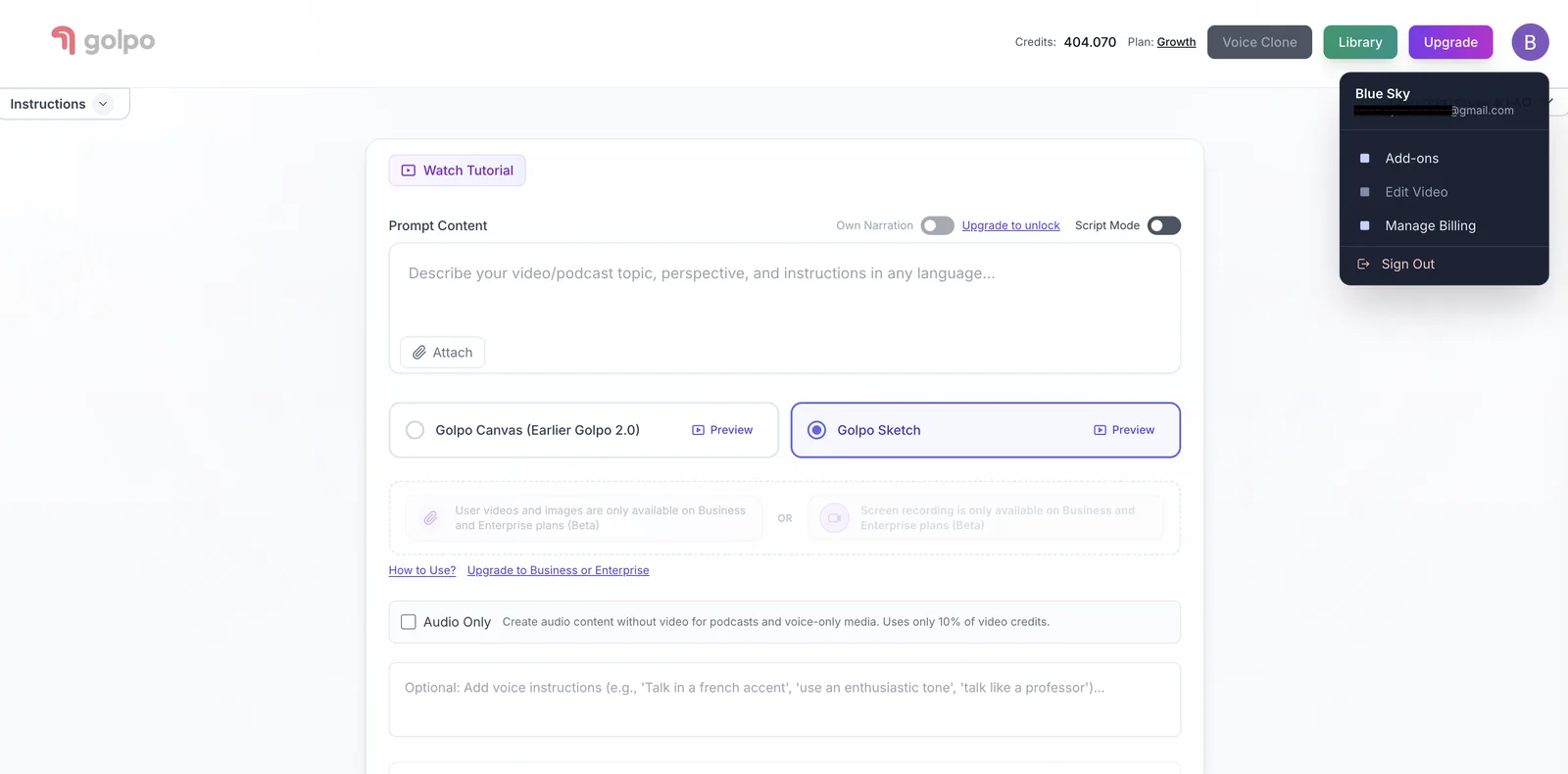
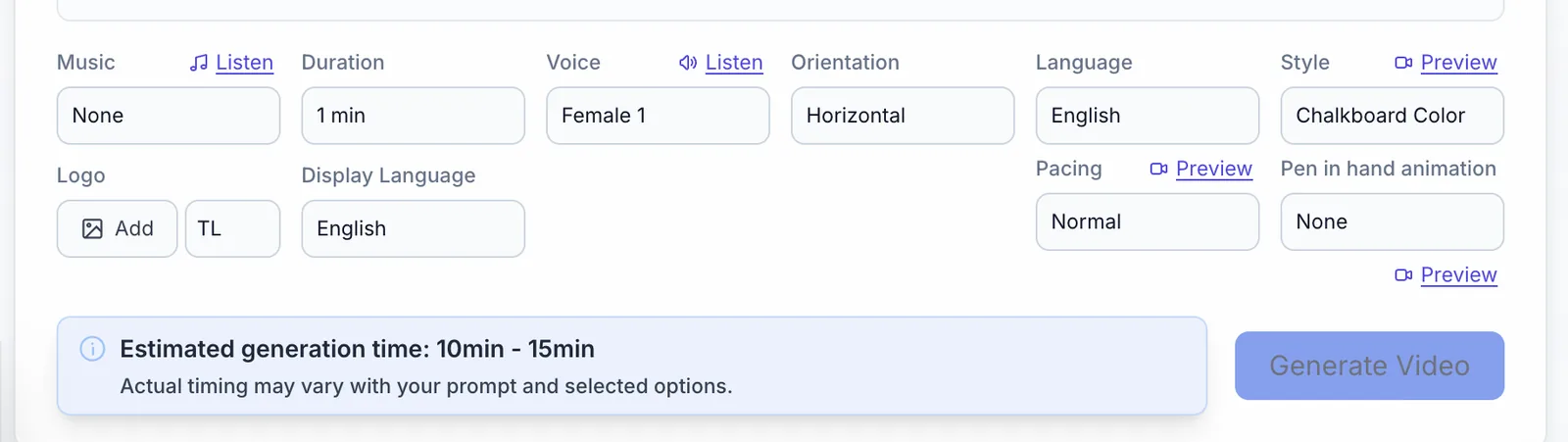
Prepare the prompt or finished script in your chosen tool, including Golpo where suitable. Specify the vertical composition and the important visual actions. Review the generated or edited scenes for text accuracy and continuity. A checklist should not change wording between shots unless the change is intentional.
Finish for the actual viewing context
Check the video with sound on and muted. Keep essential content clear of likely interface overlays. Add a useful caption that supplies context or a practical next step. Inspect the uploaded result because platform presentation can differ from the editor preview.
The workflow inside Golpo
Use these real interface views to find the creation and review controls. Apply the decisions from this guide to your own brief, then review the resulting script and visuals before publishing.
Choose motion that explains
A task moving from a crowded list into a priority box communicates a decision. A random zoom on an unrelated photograph does not. Use movement to direct attention to a relationship, reveal a sequence, or compare states. A calmer scene can be more effective when the audience needs time to read.
Make the ending useful
Close with the completed example, a concise takeaway, or a question that naturally follows. Do not let the video trail off after the last animated element. If you include a call to action, make it relevant to the viewer’s next task rather than asking for several unrelated actions.
Worked example: turn a list into a next action
The Reel starts with eight vague tasks. One task is rewritten as a concrete action, placed at the top, and given a small completion box. The viewer sees exactly how to apply the tip.
Write a 35-second vertical faceless Reel about turning a vague task into a concrete next action. Use the example “work on presentation” becoming “write the three audience questions.” Provide narration, short captions, and four visual beats. Keep the checklist text stable and readable. End with the completed example and one invitation to try the method.
Before you publish
- One visible transformation
- Honest opening
- Large captions
- Muted playback works
- Final upload inspected
Now, make it yours.
Start with a prompt, bring your script, or turn document text into a video.
You’ll review the setup in Golpo.
Sign-in and plan limits apply.
Your complete text is ready. It is too long to send reliably in a link. Copy it, open Golpo, and paste it into the prompt or script field.
Open GolpoCommon questions
Does a Reel need music?
No. Use music when it supports the mood without obscuring narration or conflicting with usage rights.
How much text is too much?
Test at normal phone size. If you must pause repeatedly to read, shorten the captions or simplify the scene.
Sources & useful reading
Published November 24, 2026. Product features and platform policies can change; linked official documentation is the source for current availability. Examples are illustrative production briefs.