
Export or copy the approved content from your Notion page, narrow it to one explanation, and turn it into a reviewed script or source document. Check the exported material before using it in a video tool; a live Notion connection is not required for this workflow.
Notion pages often mix instructions, databases, embedded files, comments, and links. A useful video needs only the material relevant to its audience and purpose. Start with a clean snapshot of the approved information so the script does not accidentally include unfinished notes, private details, or context that only the page’s authors understand.
Step by step
Choose the page section and audience
Identify the question the video should answer, such as how a new teammate submits a request. Select the relevant headings and examples. Avoid converting an entire workspace or dense operating manual when one short procedure would serve the viewer better.
Create an approved content snapshot
Notion documents export options including PDF, HTML, and Markdown or CSV, depending on the content and export choices. Use an appropriate available format or copy the necessary text. Inspect the resulting file for missing context, unwanted comments, linked material, and private information.
Rewrite the page for narration
Turn headings and bullet fragments into natural spoken sentences. Explain any team-specific terms. Replace navigation instructions with a clear process unless the video’s purpose is to teach the actual interface. Keep the source page URL and review date with the working script.
Create a scene plan from the process
Assign one visual action to each meaningful step. For a request procedure, show the request, required information, review, and next action. Provide the approved script or document to the chosen video workflow, confirming supported input formats rather than assuming every export can be imported directly.
Review and maintain the video with the page
Have the process owner compare the draft with the current approved procedure. Check names, labels, decision paths, and permissions. Record who updates the video when the Notion page changes. Publish only after the final output accurately reflects the intended source version.
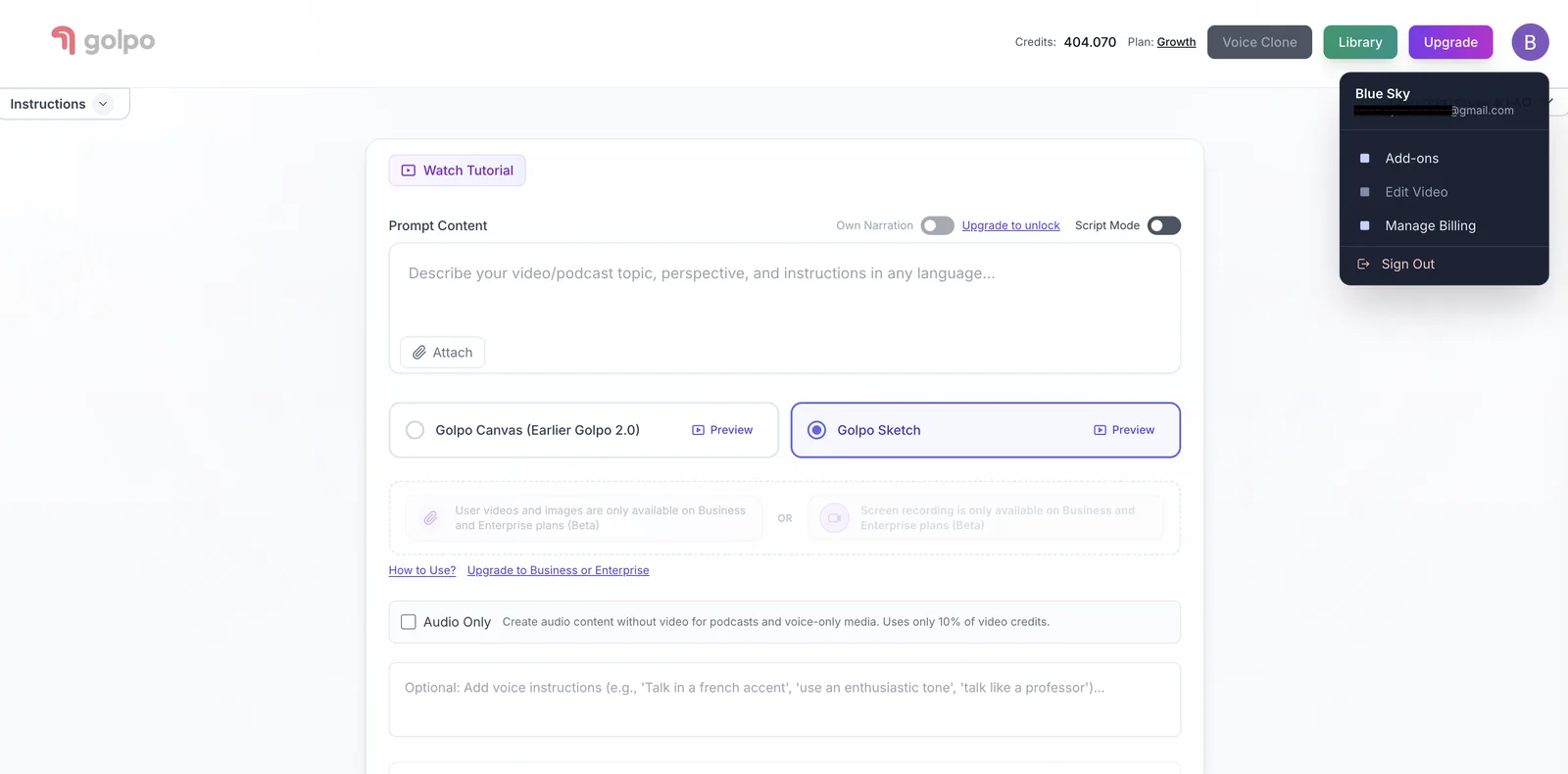
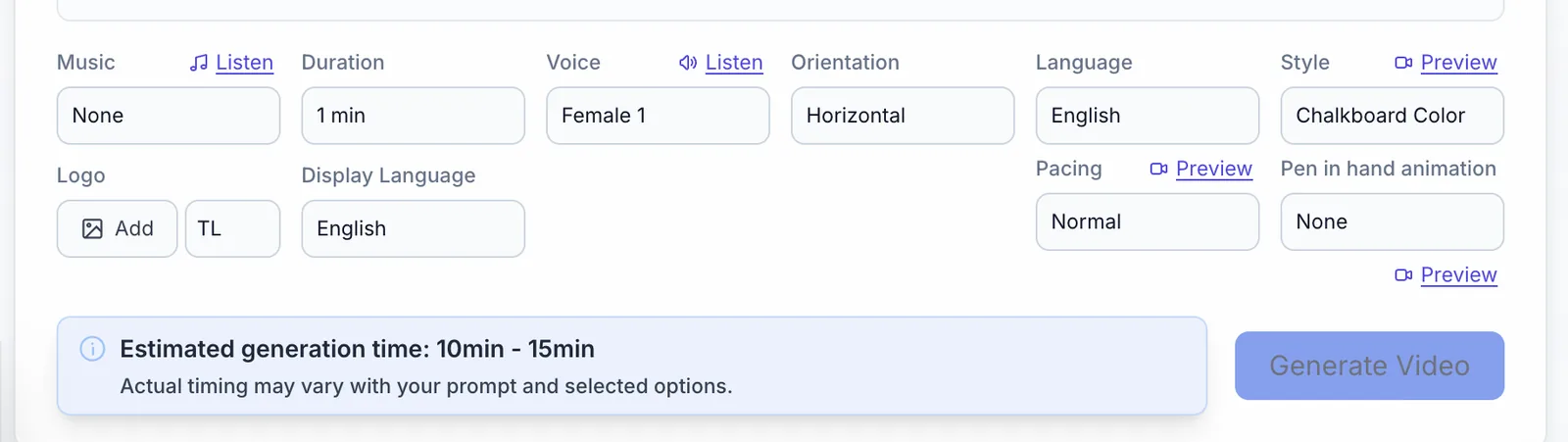
The workflow inside Golpo
Use these real interface views to find the creation and review controls. Apply the decisions from this guide to your own brief, then review the resulting script and visuals before publishing.
A link is not the same as accessible source content
A private or complex page may not be available to a video tool through a URL alone. Use the documented input route and an authorized export or script. Do not make a workspace public merely to simplify generation when a limited content snapshot is sufficient.
Keep database detail out of the narration when unnecessary
A table may contain many rows that do not belong in a short explanation. Select a representative authorized example and describe the structure. If the numbers matter, verify them independently after export and keep the date or version visible.
Worked example: explain a team request procedure
The team extracts four approved sections from a Notion page: required information, submission, review, and response. The video follows one fictional request card. The process owner keeps the source page and video version linked in the project record.
Adapt the approved content from my Notion request-procedure page into an illustrated onboarding video. First identify the audience and necessary sections, then flag missing context or private information. Draft narration and four scene actions using a fictional request. Include export inspection, input-format verification, process-owner review, and a future update checklist.
Before you publish
- Scope narrowed
- Export inspected
- Private details removed
- Input route verified
- Update owner named
Now, make it yours.
Start with a prompt, bring your script, or turn document text into a video.
You’ll review the setup in Golpo.
Sign-in and plan limits apply.
Your complete text is ready. It is too long to send reliably in a link. Copy it, open Golpo, and paste it into the prompt or script field.
Open GolpoCommon questions
Do I need a direct Notion integration?
No. An authorized export or reviewed script can support the workflow. Use a direct integration only if its current capabilities and permissions meet your needs.
Should I include every subpage?
Include only material necessary for the chosen explanation. Review linked or nested content before exporting or uploading it.
Sources & useful reading
Published November 24, 2026. Product features and platform policies can change; linked official documentation is the source for current availability. Examples are illustrative production briefs.