Use a phone-friendly production sequence: capture a focused idea, write a short script, assemble a small number of readable scenes, review audio with headphones, and test the exported file on the device where viewers will watch.
A phone can be a useful production device when the project respects its constraints. Small screens make complex timelines, tiny labels, and large asset libraries harder to manage. Keep the first video short and visually simple. Organizing the script and assets before editing saves more effort than repeatedly searching through the camera roll during assembly.
Step by step
Create a dedicated project folder
Collect the script, source links, images, and audio in one clearly named location. Use descriptive filenames rather than leaving everything in recent downloads. Keep a clean copy of original assets. If you work across a browser and an editing app, confirm that both can access the files you plan to use.
Draft a short, visual script
Choose one question and write a compact explanation with three or four scenes. Type the key on-screen labels separately from narration. This prevents you from trying to squeeze full paragraphs into a vertical frame. Read the script aloud before editing to catch sentences that are too long for a small production.
Capture clean source material
For demonstrations, hide notifications and remove personal information before recording the screen. Use fictional example data where possible. Capture only the part of the workflow the viewer needs. A short, deliberate screen recording is easier to edit and safer to publish than a long recording of your normal device activity.
Use a layout designed for a small screen
Make the central subject large and keep text away from interface overlays. Preview each frame at normal phone size rather than zooming in while editing. If two diagrams become unreadable side by side, show them sequentially or simplify the comparison. Do not depend on viewers pausing to decipher labels.
Check browser-tool compatibility early
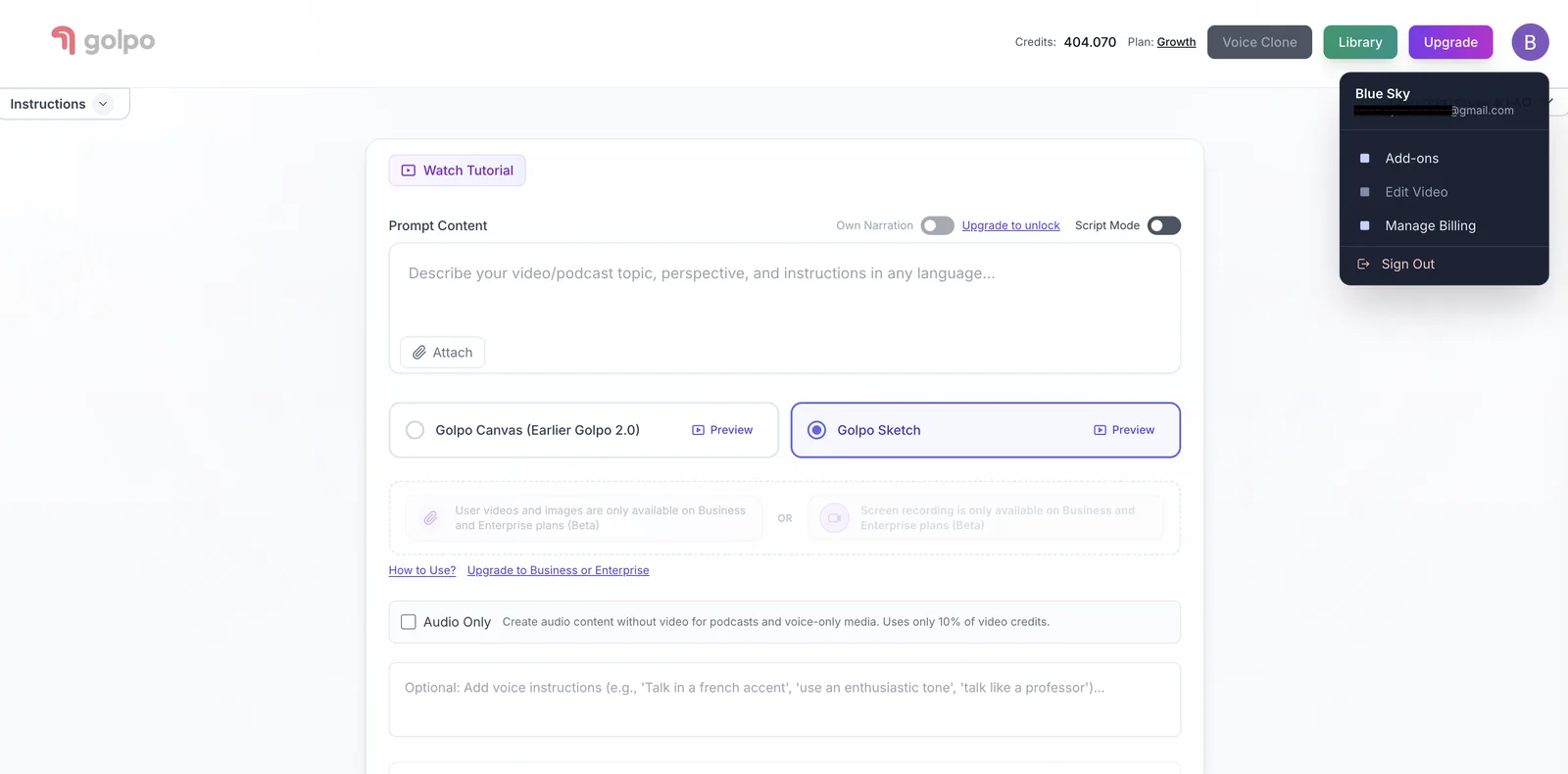
If using Golpo or another browser-based tool, test the creation page, file picker, and account flow on your phone before preparing a long project. Interface behavior can vary by device and browser. Avoid assuming that a desktop tutorial’s controls occupy the same positions or support the same gestures on mobile.
Export, inspect, and upload deliberately
Review the final downloaded file, including the first and last seconds. Listen for audio clipping, check caption spelling, and verify the orientation. Upload using a stable connection and inspect the published result before sharing it broadly. Retain the project files so a correction does not require rebuilding from memory.
The workflow inside Golpo
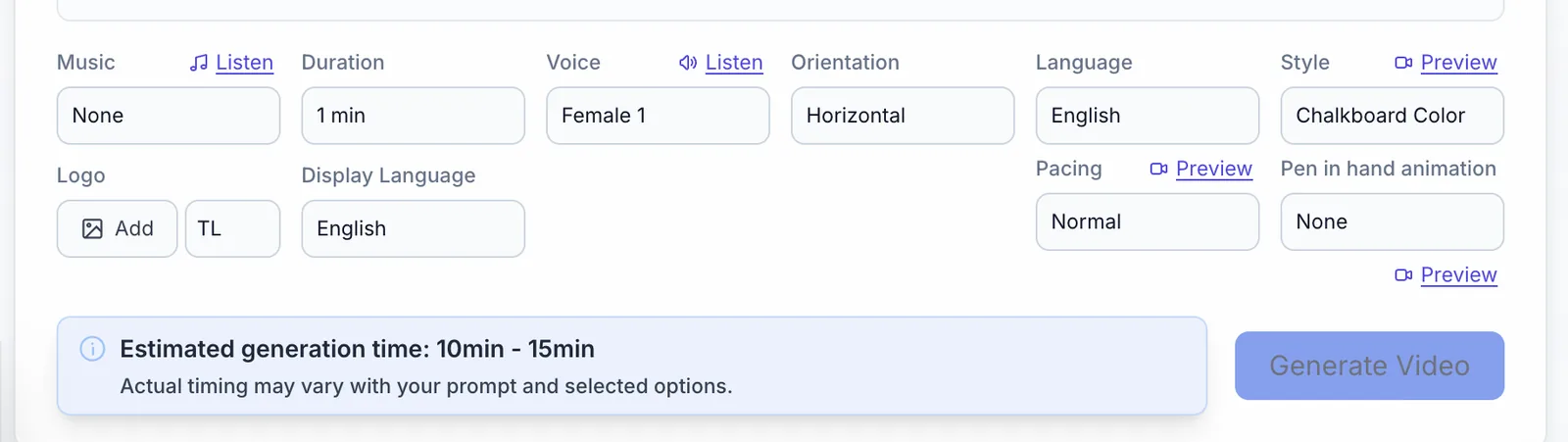
Use these real interface views to find the creation and review controls. Apply the decisions from this guide to your own brief, then review the resulting script and visuals before publishing.
A mobile production boundary that helps
Keep research and editing separate. Finish the source check and script first, then enter the editing session with a small asset set. If the phone becomes the bottleneck for a complicated animation or lengthy documentary, move that stage to a larger device while keeping the same organized project structure. Mobile creation is a practical option, not a requirement to complete every possible task on one screen.
Worked example: a phone-made study tip
A short video demonstrates turning one large assignment into three smaller tasks. The visuals use a fictional task list, a simple progress bar, and a final checklist. There is no need for camera footage or a complicated multi-track edit.
Plan a 45-second vertical faceless video explaining how to break a large assignment into three manageable tasks. Production device: phone. Use only a fictional checklist, three large task cards, and simple motion. Give me concise narration, on-screen text, and an asset list. Include a privacy check before any screen recording and a final phone-size readability check.
Before you publish
- Project folder organized
- Notifications and private data hidden
- Labels readable at normal size
- Actual mobile workflow tested
- Export reviewed before upload
Now, make it yours.
Start with a prompt, bring your script, or turn document text into a video.
You’ll review the setup in Golpo.
Sign-in and plan limits apply.
Your complete text is ready. It is too long to send reliably in a link. Copy it, open Golpo, and paste it into the prompt or script field.
Open GolpoCommon questions
Do I need a paid mobile editor?
Start by testing the free export options of tools already available to you. Pay only when a specific limitation blocks your intended result.
Can I upload documents from a phone?
A browser file picker may support files accessible on the device, but test the actual service and file type. Do not assume every desktop import option is available on mobile.
Sources & useful reading
Published November 24, 2026. Product features and platform policies can change; linked official documentation is the source for current availability. Examples are illustrative production briefs.